 Pizyn
The short answer
- Open Seedream 5.5 in the studio.
- Set the background to transparent and the output format to PNG.
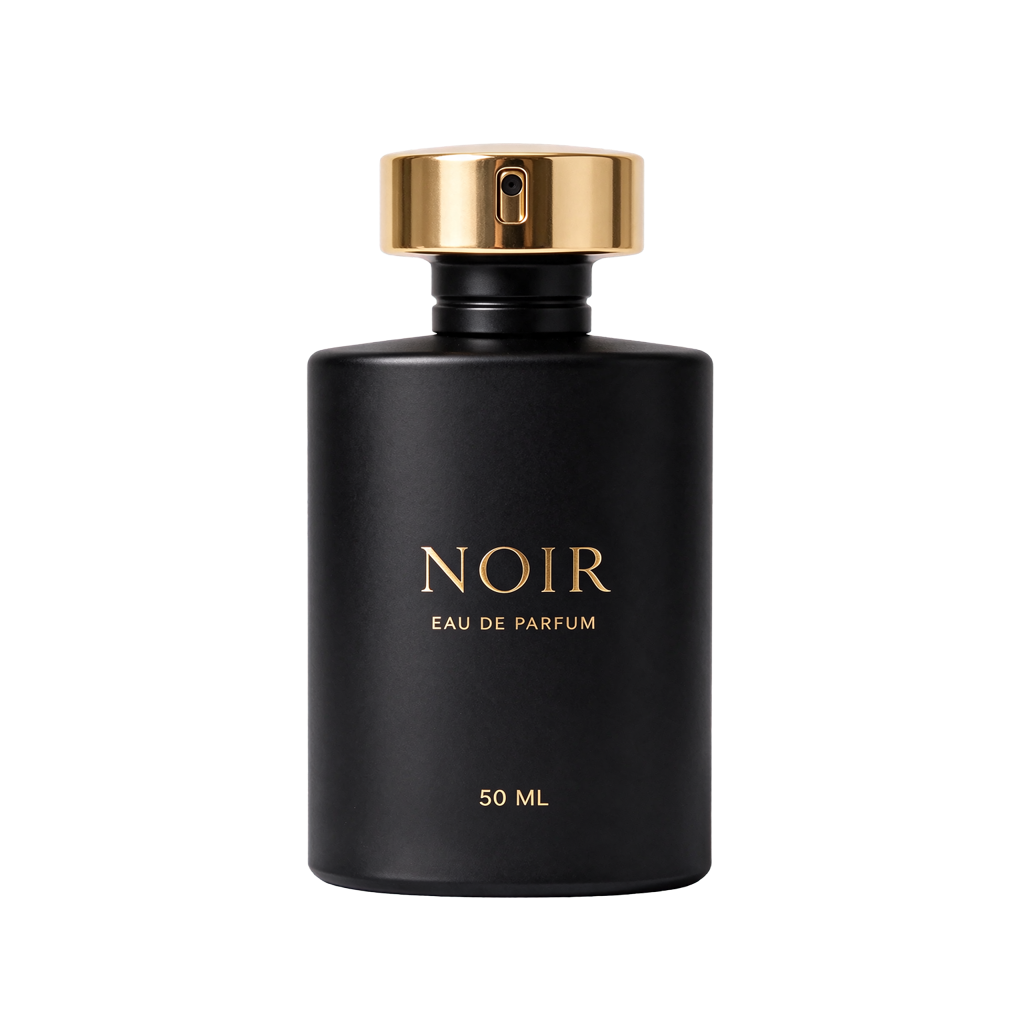
- Write a prompt for one isolated subject: "product photo of a matte black perfume bottle, gold cap, isolated on a transparent background, studio lighting".
- Generate at 1K for 4 credits (or 2K for 6 credits if you need print resolution) and download the PNG.
That is the whole workflow. There is no background-removal tool in the chain, no masking, no cleanup pass. The model returns an RGBA file: colour channels for the subject, an alpha channel of zero everywhere else. Drop it onto any background in Figma, Photoshop, Canva or a web page and it composites cleanly.
The proof: we measured the alpha channel
A PNG can look transparent in a preview and still carry a white background, so "it looked right" is not evidence. We read each file's alpha channel with Python (PIL) and counted the fully transparent pixels. Every corner of every image reads alpha 0 — genuinely empty, not white:
| Perfume bottle | RGBA · 74.6% fully transparent pixels |
| Robot mascot sticker | RGBA · 60.0% fully transparent pixels |
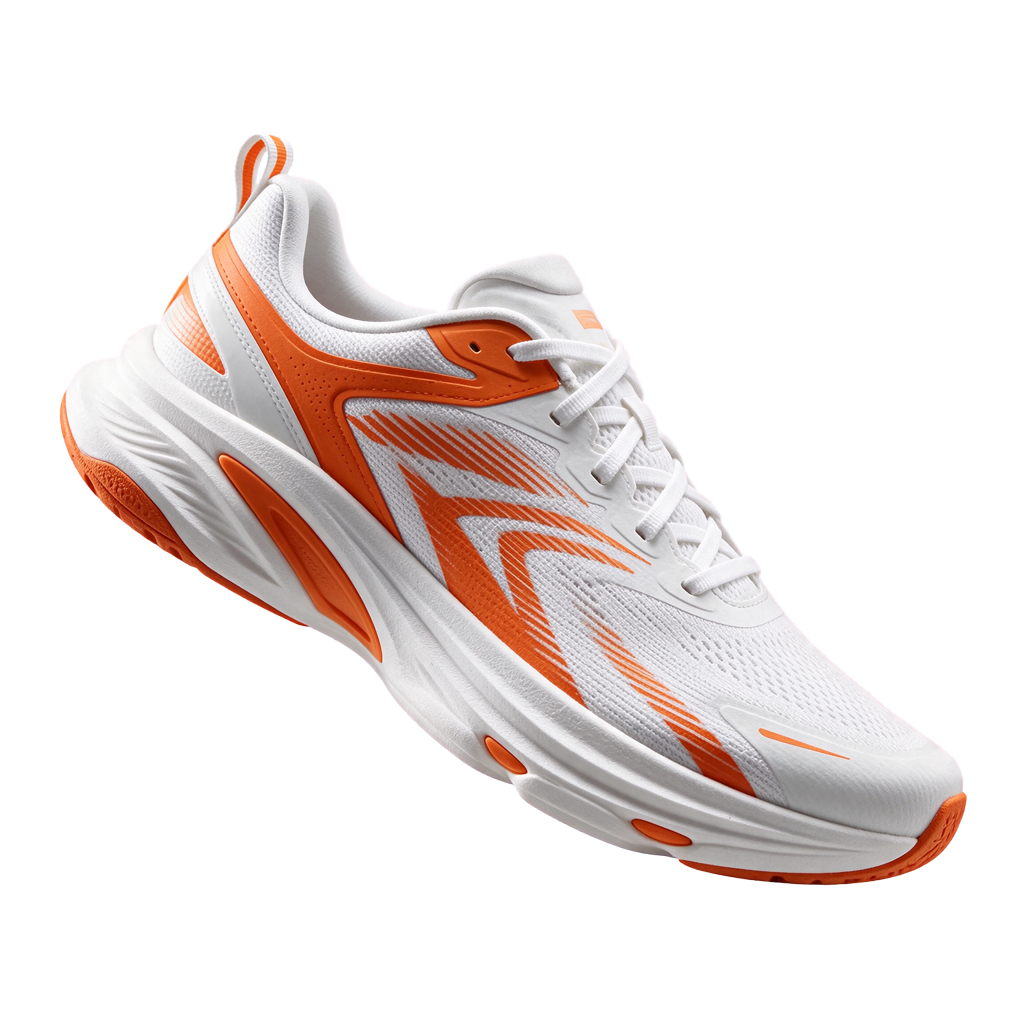
| Running sneaker | RGBA · 69.8% fully transparent pixels |
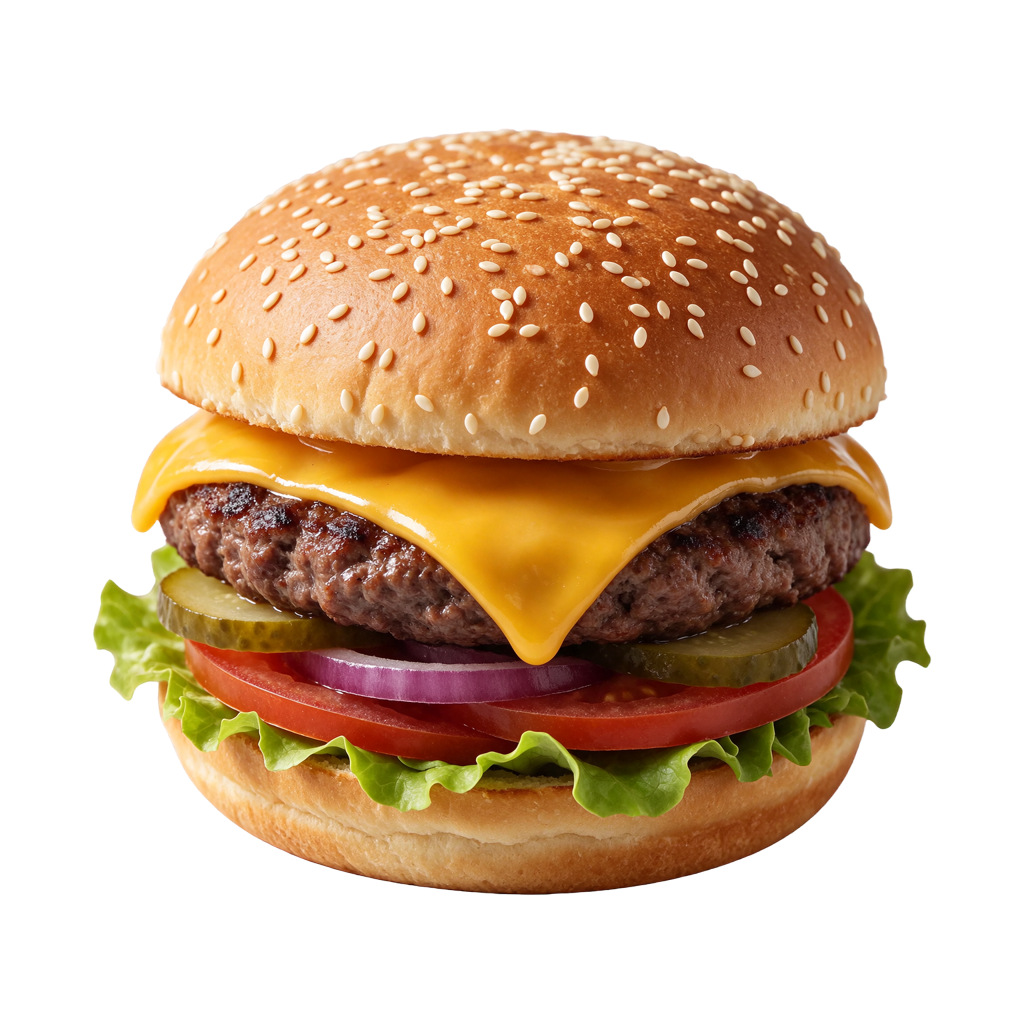
| Cheeseburger | RGBA · 52.5% fully transparent pixels |
| Cartoon fox | RGBA · 71.3% fully transparent pixels |
| Latte, top view | RGBA · 61.8% fully transparent pixels |
The percentages differ because the subjects differ — a burger fills more of the frame than a perfume bottle. The number that matters is the corners: alpha 0 in all four, on all six images.
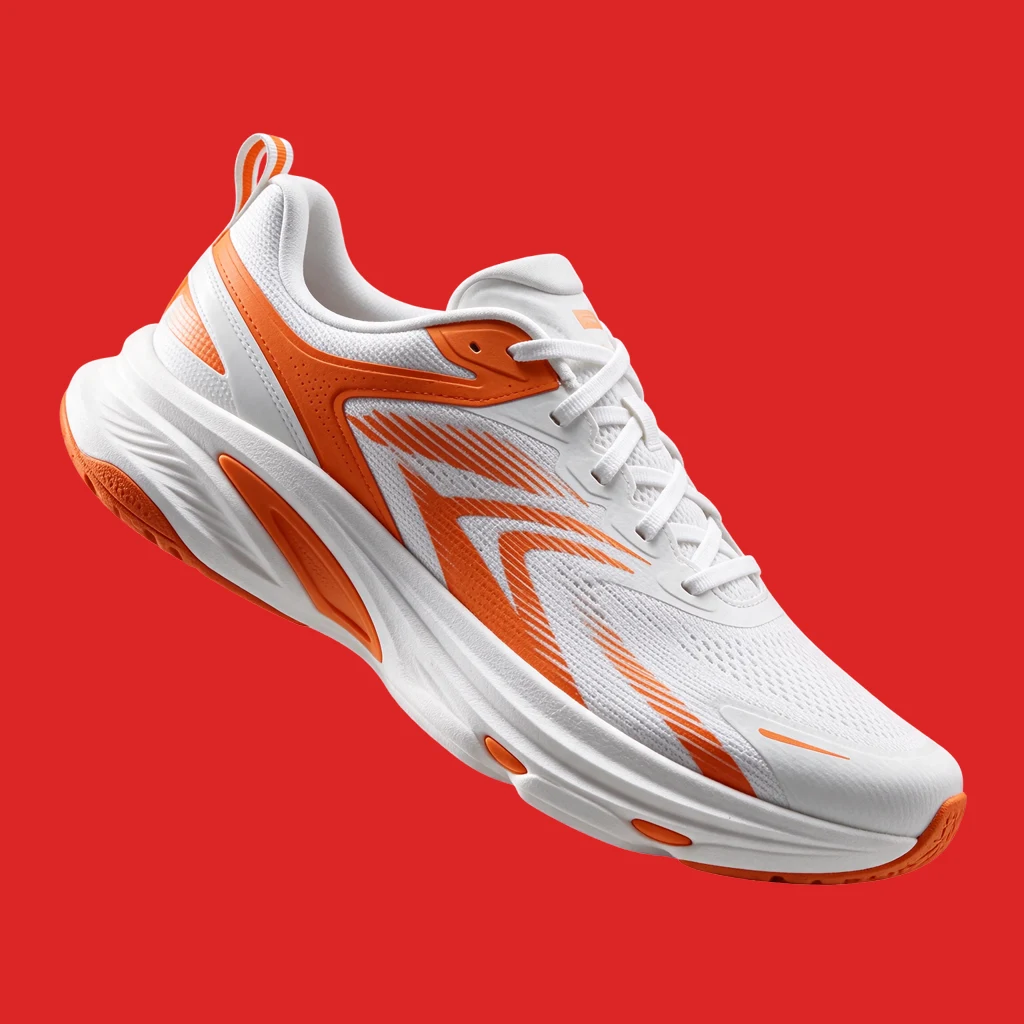
You can verify any PNG the same way in ten seconds, without code: paste it onto a solid red background. If the red shows through everywhere the subject is not, the alpha is real. The hero image above is exactly that test — the sneaker composited on pure red, no masking, no edits. The red is the background layer showing through the transparent pixels.
Python check, if you want the numbers: Image.open("file.png").getchannel("A") — a real transparent PNG has mode RGBA and corners with alpha 0. A fake one has mode RGB, or an alpha channel that is 255 everywhere.
Six cutouts, six use cases
All six were generated on November 13, 2026 with Seedream 5.5 at 1K, background transparent, PNG output, 4 credits each. First outputs, no re-rolls.



The control: GPT Image 2.6 faked it
We ran the same sneaker brief through GPT Image 2.6 at medium quality, PNG output, asking explicitly for a transparent background. The result is the most instructive image in this article:
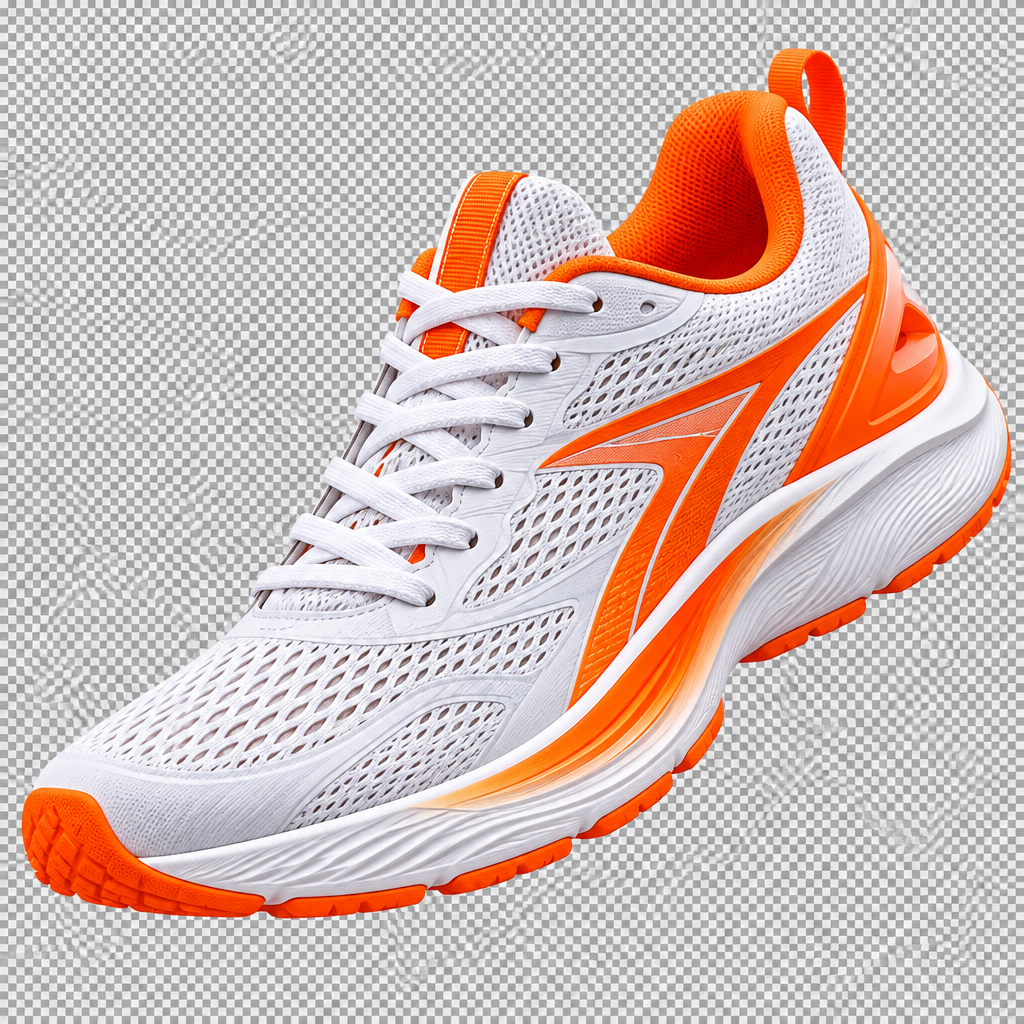
This is the failure mode to watch for with any model that does not support native transparency: it has seen millions of transparent PNGs displayed on checkerboards, so it has learned that "transparent background" looks like a checkerboard — and it draws one. The result fools a thumbnail and fails everywhere else. If your only model is GPT Image 2.6, the honest workflow is to generate on a plain white background and remove it with a background-removal tool afterwards. If you need the alpha straight out of the model, use Seedream 5.5.
Prompt tips for clean cutouts
- One subject, centred, filling most of the frame. Cutouts work best when the subject is the whole image. Full scenes, landscapes and groups of objects are not cutout jobs.
- Say "isolated on a transparent background" in the prompt as well as setting the background control — the setting does the work, the words keep the composition clean.
- Avoid ground shadows and reflections. A shadow needs a floor to fall on; without one, the model may invent a surface. "Floating" or "studio product shot" phrasing keeps the subject airborne.
- Glass, smoke and glow are approximate. Semi-transparent materials have partial alpha, and the model has to guess where the edge is. Solid objects — bottles, shoes, food, characters — cut out cleanly; a glass of water will not.
- Use 2K for print. 1K (1024×1024) is plenty for web, slides and social; if the cutout is going on packaging or a poster, generate at 2K for 6 credits.
What it costs
Live studio rates, checked against the manifest before writing. A credit is about $0.01 in pack terms; full pack pricing is on the pricing page.
- Seedream 5.5, transparent PNG — 4 credits at 1K and 1.5K, 6 credits at 2K. Transparency costs the same as a normal generation; there is no surcharge for the alpha channel.
- Edits — 5 / 5 / 8 credits at 1K / 1.5K / 2K, +2 credits per extra reference (up to 10 references).
The seven generations in this article cost 33 credits — six Seedream cutouts and the GPT control — under a tenth of the $5 Mini pack.
Where this is limited
We tested one model that does it, and one that does not. Other models on this studio may or may not return alpha; we verified Seedream 5.5 and GPT Image 2.6 only, on November 13, 2026. Edit round-trips are untested. We have not yet checked whether editing a transparent PNG (or using one as a reference) preserves the alpha channel — verify the output's alpha after any edit before you rely on it. 1K is the default. At 2K the cutouts cost 6 credits and take slightly longer; for very large print work you may still want to upscale. The checkerboard trap is real. Any model that lacks a transparency setting can produce the painted-checkerboard fake — always check the file mode before you use it.
Bottom line
The old advice — "AI can't make transparent PNGs, generate on white and remove the background" — is out of date. Seedream 5.5 returns a genuine RGBA file at 4 credits, verified pixel by pixel, and the red-background test takes ten seconds to confirm it. The one thing to remember is the GPT lesson: a checkerboard in the image is not transparency. Check the alpha channel, not the thumbnail.